> ## Documentation Index
> Fetch the complete documentation index at: https://radarlabs-update-tracking-options.mintlify.site/llms.txt
> Use this file to discover all available pages before exploring further.
# Beacons
Beacons is available on the [Enterprise plan](https://radar.com/pricing).
With Beacons, you can detect nearby Bluetooth beacons. Use Beacons for indoor or drive-thru use cases.
Beacons are like hardware-enabled micro-geofences, accurate down to a few meters. For example, you might create a store-level [geofence](/geofencing/geofences) and monitor beacons installed at the entrance, in the drive-thru, on registers, on tables, in aisles, or in parking spaces at each store.
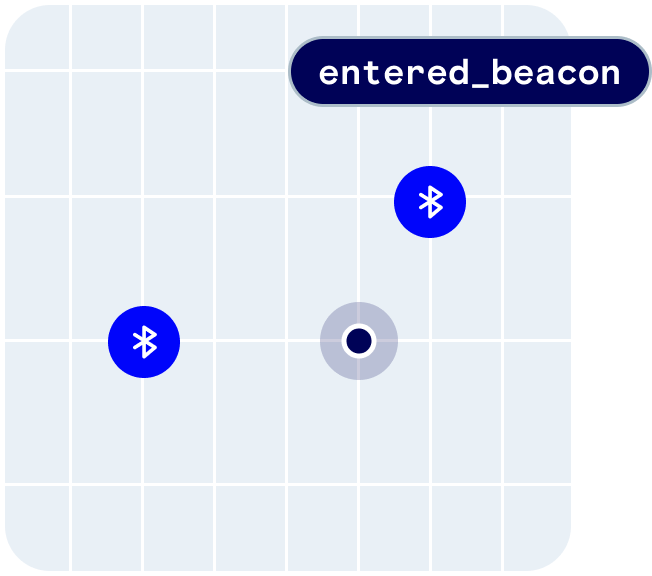 Beacons provides the following user context:
```json theme={null}
{
"beacons": [
{
"type": "ibeacon",
"uuid": "b9407f30-f5f8-466e-aff9-25556b57fe6d",
"major": "100",
"minor": "1",
"description": "Store 123 - Register 1",
"tag": "store-register",
"externalId": "123-1",
"enabled": true
},
{
"type": "eddystone",
"uid": "f7826da6bc5b71e0893e",
"instance": "4456384b726a",
"description": "Store 123 - Aisle A",
"tag": "store-aisle",
"externalId": "123-A",
"enabled": true
}
]
}
```
Beacons also provides the following events:
* `user.entered_beacon`
* `user.exited_beacon`
You can receive events client-side via the [SDK](/sdk) or server-side via [event integrations](/integrations/integrations), including webhooks.
## Quickstart
First, [sign up](https://radar.com/signup) for Radar and get an API key.
Then, [create beacons](#create-beacons).
From there, [integrate the SDK](/sdk) and call `Radar.trackOnce()` with `beacons = true` or `Radar.startTracking()` with `trackingOptions.beacons = true`, depending on your use case. Radar will generate an entry event on the first location update within range of a beacon.
## How it works
Beacon detection works on iOS and Android in the foreground and in the background. After you import beacons, Radar will sync nearby beacons to the SDK on every location update.
On iOS and Android, Radar can range any beacons compatible with [iBeacon](https://developer.apple.com/ibeacon/). On Android, the SDK can also range any beacons compatible with [Eddystone-UID](https://github.com/google/eddystone).
Just like the Radar generates `user.entered_geofence` events after you import [geofences](/geofencing/geofences), Radar will generate `user.entered_beacon` events after you import beacons.
To range beacons, the user must grant location permissions. On Android, the user must also grant the [required Bluetooth permissions](https://developer.android.com/about/versions/12/features/bluetooth-permissions#declare-new-permissions). If the user grants foreground location permissions, you can range nearby beacons in the foreground by calling `Radar.trackOnce(desiredAccuracy, beacons, completionHandler:)` with `beacons = true`. If the user grants background location permissions, you can monitor beacons in the background by calling `Radar.startTracking()` with `trackingOptions.beacons = true`. See the [SDK reference](/sdk) for more information.
Beacon entry and exit events are sent to the SDK, to [webhooks](/integrations#webhooks), and to [integrations](/integrations/integrations) just like geofence entry and exit events.
### Ranging by UUID only
By default, Radar will sync nearby beacons to the SDK on every location update using the `coordinates` specified for each beacon. The SDK will then range nearby beacons based on `uuid`, `major`, and `minor` for iBeacon or `uid` and `instance` for Eddystone.
Alternatively, the SDK can range beacons based on `uuid` or `uid` only, regardless of the `coordinates` specified for each beacon. To enable this, set *iBeacon UUIDs* and/or `Eddystone UIDs` on the [Settings page](https://dashboard.radar.com/settings), under *Beacons*. On iOS, you must also enable the *Location updates* [background mode](/sdk/ios#background-modes).
## Create beacons
You can create beacons via the dashboard, CSV import, or through the API. You can create beacons in the Test environment for development and testing, and in the Live environment for production.
Like [geofences](/geofencing/geofences), you also specify the metadata for beacons when you create them, including *tag* (a group for the beacon, e.g., `store-register`), external ID (an external ID for the beacon that maps to your internal database, e.g., `123-1`), *description* (a display name for the beacon, e.g., `Store 123 - Register 1`).
You also specify the identifiers used to range the beacon, including `uuid`, `major`, and `minor` for iBeacon or `uid` and `instance` for Eddystone, as well as an approximate latitude and longitude used to sync nearby beacons (within 1 kilometer) to the SDK.
**Beacons should be uniquely referenced by tag and external ID, assigned by you when a beacon is created. To disable or rotate identifiers for a beacon, re-import the beacon with the same tag and external ID.**
### Dashboard
To create a beacon via the dashboard, go to the [Beacons page](https://dashboard.radar.com/geofencing/beacons) and click the *New* button. Optionally search for an address or place, then enter a type, tag, external ID, UUID, major, minor, and optional metadata. Click *Create* to create the beacon.
### CSV import
To import beacons via CSV import, go to the [Beacons page](https://dashboard.radar.com/geofencing/beacons) and click the *Import* button. Then, select a CSV to upload.
Headers are required as the first row of the CSV.
The CSV may have the following columns:
* **`description`** (string, required): A display name for the beacon.
* **`tag`** (string, optional): A group for the beacon.
* **`externalId`** (string, optional): An external ID for the beacon that maps to your internal database.
* **`type`** (string, required): The type of beacon, one of `ibeacon` (supported on iOS and Android) or `eddystone` (supported on Android only).
* **`uuid`** (string, required for `ibeacon`): For iBeacons, the UUID of the beacon.
* **`major`** (string, required for `ibeacon`): For iBeacons, the major ID of the beacon.
* **`minor`** (string, required for `ibeacon`): For iBeacons, the minor ID of the beacon.
* **`uid`** (string, required for `eddystone`): For Eddystone beacons, the UID of the beacon.
* **`instance`** (string, required for `eddystone`): For Eddystone beacons, the instance ID of the beacon.
* **`coordinates`** (array, required): The approximate location of the beacon, used to sync nearby beacons (within 1 kilometer) to the SDK. A JSON string in the format `[longitude,latitude]`. **Note that longitude comes before latitude, a GeoJSON convention.**
* **`enabled`** (boolean, required): If true, the beacon will generate events. If false, the beacon will not generate events.
* **`metadata`** (dictionary, optional): A set of custom key-value pairs for the beacon. A JSON string representing a dictionary with up to 16 keys and values of type string, boolean, or number.
**If a beacon with the specified tag and external ID already exists, it will be updated. If not, it will be created.**
For example, to import beacons installed on registers and in parking spaces at a store, you could use the following CSV:
```csv theme={null}
description,tag,externalId,type,uuid,major,minor,uid,instance,coordinates,enabled,metadata
"Store #123 - Register #1",store-register,123-1,ibeacon,"b9407f30-f5f8-466e-aff9-25556b57fe6d",100,1,,,"[-73.975384,40.783747]",true,{}
"Store #123 - Register #2",store-register,123-2,ibeacon,"c9407f30-f5f8-466e-aff9-25556B57fe6d",100,2,,,"[-73.975384,40.783747]",true,{}
"Store #123 - Parking Space #1",store-parking,123-1,ibeacon,"d9407f30-f5f8-466e-aff9-25556b57fe6d",101,1,,,"[-73.975363,40.783826]",true,{}
"Store #123 - Parking Space #2",store-parking,123-2,ibeacon,"e9407f30-f5f8-466e-aff9-25556b57fe6d",101,2,,,"[-73.975363,40.783826]",true,"{""type"":""parking""}"
"Store #123 - Aisle A",store-aisle,123-A,eddystone,,,,"f7826da6bc5b71e0893e","4456384b726a","[-73.974317,40.785541]",true,{}
"Store #123 - Aisle B",store-aisle,123-B,eddystone,,,,"f7826da6bc5b71e0893e","4456384b726b","[-73.974317,40.785541]",true,{}
```
**Again, note that longitude comes before latitude, a GeoJSON convention.**
You can find a history of past imports on the [Beacons import history page](https://dashboard.radar.com/geofencing/beacons/imports).
### API
You can also create beacons programmatically via the [API](/api). You can create a beacon via **POST** `/api/v1/beacons`, or upsert a beacon based on tag and external ID via **PUT** `/api/v1/beacons/:tag/:externalId`.
For example, to upsert a beacon within a store via the [API](/api):
```sh theme={null}
curl "https://api.radar.io/v1/beacons/drive-thru/store123-beacon-1" \
-H "Authorization: prj_live_sk_..." \
-X PUT \
-d "description=Store 123 - Register 1" \
-d "tag=store-register" \
-d "tag=123-1" \
-d "type=ibeacon" \
-d "uuid=b9407f30-f5f8-466e-aff9-25556b57fe6d" \
-d "major=100" \
-d "minor=1" \
-d "coordinates=[-73.975384,40.783747]" \
-d "enabled=true"
```
**Again, note that longitude comes before latitude, a GeoJSON convention.**
Beacons provides the following user context:
```json theme={null}
{
"beacons": [
{
"type": "ibeacon",
"uuid": "b9407f30-f5f8-466e-aff9-25556b57fe6d",
"major": "100",
"minor": "1",
"description": "Store 123 - Register 1",
"tag": "store-register",
"externalId": "123-1",
"enabled": true
},
{
"type": "eddystone",
"uid": "f7826da6bc5b71e0893e",
"instance": "4456384b726a",
"description": "Store 123 - Aisle A",
"tag": "store-aisle",
"externalId": "123-A",
"enabled": true
}
]
}
```
Beacons also provides the following events:
* `user.entered_beacon`
* `user.exited_beacon`
You can receive events client-side via the [SDK](/sdk) or server-side via [event integrations](/integrations/integrations), including webhooks.
## Quickstart
First, [sign up](https://radar.com/signup) for Radar and get an API key.
Then, [create beacons](#create-beacons).
From there, [integrate the SDK](/sdk) and call `Radar.trackOnce()` with `beacons = true` or `Radar.startTracking()` with `trackingOptions.beacons = true`, depending on your use case. Radar will generate an entry event on the first location update within range of a beacon.
## How it works
Beacon detection works on iOS and Android in the foreground and in the background. After you import beacons, Radar will sync nearby beacons to the SDK on every location update.
On iOS and Android, Radar can range any beacons compatible with [iBeacon](https://developer.apple.com/ibeacon/). On Android, the SDK can also range any beacons compatible with [Eddystone-UID](https://github.com/google/eddystone).
Just like the Radar generates `user.entered_geofence` events after you import [geofences](/geofencing/geofences), Radar will generate `user.entered_beacon` events after you import beacons.
To range beacons, the user must grant location permissions. On Android, the user must also grant the [required Bluetooth permissions](https://developer.android.com/about/versions/12/features/bluetooth-permissions#declare-new-permissions). If the user grants foreground location permissions, you can range nearby beacons in the foreground by calling `Radar.trackOnce(desiredAccuracy, beacons, completionHandler:)` with `beacons = true`. If the user grants background location permissions, you can monitor beacons in the background by calling `Radar.startTracking()` with `trackingOptions.beacons = true`. See the [SDK reference](/sdk) for more information.
Beacon entry and exit events are sent to the SDK, to [webhooks](/integrations#webhooks), and to [integrations](/integrations/integrations) just like geofence entry and exit events.
### Ranging by UUID only
By default, Radar will sync nearby beacons to the SDK on every location update using the `coordinates` specified for each beacon. The SDK will then range nearby beacons based on `uuid`, `major`, and `minor` for iBeacon or `uid` and `instance` for Eddystone.
Alternatively, the SDK can range beacons based on `uuid` or `uid` only, regardless of the `coordinates` specified for each beacon. To enable this, set *iBeacon UUIDs* and/or `Eddystone UIDs` on the [Settings page](https://dashboard.radar.com/settings), under *Beacons*. On iOS, you must also enable the *Location updates* [background mode](/sdk/ios#background-modes).
## Create beacons
You can create beacons via the dashboard, CSV import, or through the API. You can create beacons in the Test environment for development and testing, and in the Live environment for production.
Like [geofences](/geofencing/geofences), you also specify the metadata for beacons when you create them, including *tag* (a group for the beacon, e.g., `store-register`), external ID (an external ID for the beacon that maps to your internal database, e.g., `123-1`), *description* (a display name for the beacon, e.g., `Store 123 - Register 1`).
You also specify the identifiers used to range the beacon, including `uuid`, `major`, and `minor` for iBeacon or `uid` and `instance` for Eddystone, as well as an approximate latitude and longitude used to sync nearby beacons (within 1 kilometer) to the SDK.
**Beacons should be uniquely referenced by tag and external ID, assigned by you when a beacon is created. To disable or rotate identifiers for a beacon, re-import the beacon with the same tag and external ID.**
### Dashboard
To create a beacon via the dashboard, go to the [Beacons page](https://dashboard.radar.com/geofencing/beacons) and click the *New* button. Optionally search for an address or place, then enter a type, tag, external ID, UUID, major, minor, and optional metadata. Click *Create* to create the beacon.
### CSV import
To import beacons via CSV import, go to the [Beacons page](https://dashboard.radar.com/geofencing/beacons) and click the *Import* button. Then, select a CSV to upload.
Headers are required as the first row of the CSV.
The CSV may have the following columns:
* **`description`** (string, required): A display name for the beacon.
* **`tag`** (string, optional): A group for the beacon.
* **`externalId`** (string, optional): An external ID for the beacon that maps to your internal database.
* **`type`** (string, required): The type of beacon, one of `ibeacon` (supported on iOS and Android) or `eddystone` (supported on Android only).
* **`uuid`** (string, required for `ibeacon`): For iBeacons, the UUID of the beacon.
* **`major`** (string, required for `ibeacon`): For iBeacons, the major ID of the beacon.
* **`minor`** (string, required for `ibeacon`): For iBeacons, the minor ID of the beacon.
* **`uid`** (string, required for `eddystone`): For Eddystone beacons, the UID of the beacon.
* **`instance`** (string, required for `eddystone`): For Eddystone beacons, the instance ID of the beacon.
* **`coordinates`** (array, required): The approximate location of the beacon, used to sync nearby beacons (within 1 kilometer) to the SDK. A JSON string in the format `[longitude,latitude]`. **Note that longitude comes before latitude, a GeoJSON convention.**
* **`enabled`** (boolean, required): If true, the beacon will generate events. If false, the beacon will not generate events.
* **`metadata`** (dictionary, optional): A set of custom key-value pairs for the beacon. A JSON string representing a dictionary with up to 16 keys and values of type string, boolean, or number.
**If a beacon with the specified tag and external ID already exists, it will be updated. If not, it will be created.**
For example, to import beacons installed on registers and in parking spaces at a store, you could use the following CSV:
```csv theme={null}
description,tag,externalId,type,uuid,major,minor,uid,instance,coordinates,enabled,metadata
"Store #123 - Register #1",store-register,123-1,ibeacon,"b9407f30-f5f8-466e-aff9-25556b57fe6d",100,1,,,"[-73.975384,40.783747]",true,{}
"Store #123 - Register #2",store-register,123-2,ibeacon,"c9407f30-f5f8-466e-aff9-25556B57fe6d",100,2,,,"[-73.975384,40.783747]",true,{}
"Store #123 - Parking Space #1",store-parking,123-1,ibeacon,"d9407f30-f5f8-466e-aff9-25556b57fe6d",101,1,,,"[-73.975363,40.783826]",true,{}
"Store #123 - Parking Space #2",store-parking,123-2,ibeacon,"e9407f30-f5f8-466e-aff9-25556b57fe6d",101,2,,,"[-73.975363,40.783826]",true,"{""type"":""parking""}"
"Store #123 - Aisle A",store-aisle,123-A,eddystone,,,,"f7826da6bc5b71e0893e","4456384b726a","[-73.974317,40.785541]",true,{}
"Store #123 - Aisle B",store-aisle,123-B,eddystone,,,,"f7826da6bc5b71e0893e","4456384b726b","[-73.974317,40.785541]",true,{}
```
**Again, note that longitude comes before latitude, a GeoJSON convention.**
You can find a history of past imports on the [Beacons import history page](https://dashboard.radar.com/geofencing/beacons/imports).
### API
You can also create beacons programmatically via the [API](/api). You can create a beacon via **POST** `/api/v1/beacons`, or upsert a beacon based on tag and external ID via **PUT** `/api/v1/beacons/:tag/:externalId`.
For example, to upsert a beacon within a store via the [API](/api):
```sh theme={null}
curl "https://api.radar.io/v1/beacons/drive-thru/store123-beacon-1" \
-H "Authorization: prj_live_sk_..." \
-X PUT \
-d "description=Store 123 - Register 1" \
-d "tag=store-register" \
-d "tag=123-1" \
-d "type=ibeacon" \
-d "uuid=b9407f30-f5f8-466e-aff9-25556b57fe6d" \
-d "major=100" \
-d "minor=1" \
-d "coordinates=[-73.975384,40.783747]" \
-d "enabled=true"
```
**Again, note that longitude comes before latitude, a GeoJSON convention.**