> ## Documentation Index
> Fetch the complete documentation index at: https://radarlabs-update-tracking-options.mintlify.site/llms.txt
> Use this file to discover all available pages before exploring further.
# Trips
With Trips, you can track trips and calculate live ETAs from an origin to a destination. Use Trips for use cases like pickup or delivery tracking.
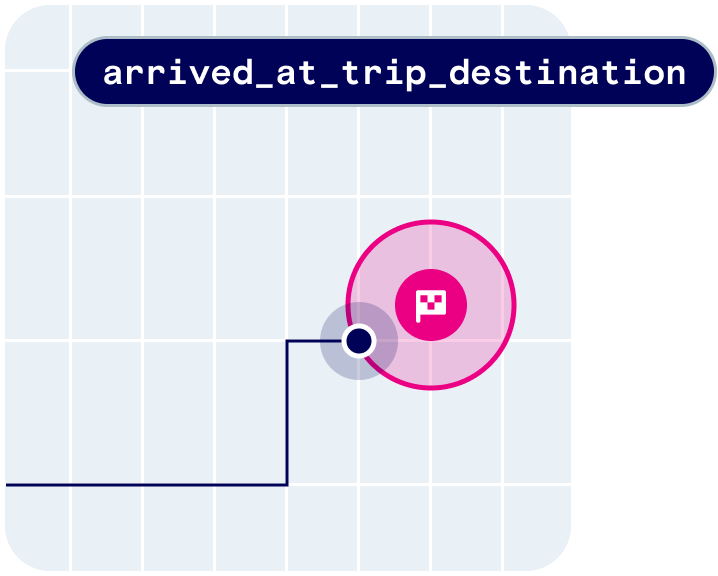 Trips provides the following user context:
```json theme={null}
{
"trip": {
"_id": "5f3e50491c2b7d005c81f5d9",
"live": true,
"status": "started",
"externalId": "299",
"metadata": {
"Customer Name": "Jacob Pena",
"Car Model": "Green Honda Civic"
},
"mode": "car",
"destinationGeofenceTag": "store",
"destinationGeofenceExternalId": "123",
"destinationLocation": {
"coordinates": [
-105.06119826017914,
39.7793665
],
"type": "Point"
},
"eta": {
"duration": 5.5, // minutes
"distance": 1331 // meters
},
"createdAt": "2020-08-20T10:27:55.830Z",
"updatedAt": "2020-08-20T10:30:55.837Z",
"endedAt": "2020-08-20T10:30:55.837Z"
}
}
```
Trips also provides the following events:
* `user.started_trip`
* `user.updated_trip`
* `user.approaching_trip_destination`
* `user.arrived_at_trip_destination`
* `user.stopped_trip`
## Quickstart
First, [sign up](https://radar.com/signup) for Radar and get an API key.
Then, [create a destination geofence](/geofencing/geofences#create-geofences).
From there, [integrate the SDK](/sdk) and call `Radar.startTrip()`. Radar will generate trip events with ETAs to the destination geofence.
## Starting trips
When it's time to start a trip (e.g., when a user taps "I'm on my way" for a pickup, or when a delivery starts), start a trip with trip options (including an external ID for the trip, a destination geofence, a travel mode, and any custom metadata) and tracking options to be used during the trip (usually `RadarTrackingOptions.CONTINUOUS`).
As the trip progresses, the status will update from `started` to `approaching` (based on the *Approaching threshold* on the [Settings page](https://dashboard.radar.com/settings)), then `arrived` (on destination geofence entry).
```swift Swift theme={null}
let metadata = [
"Customer Name": "Jacob Pena",
"Car Model": "Green Honda Civic"
]
let tripOptions = RadarTripOptions(externalId: "299", destinationGeofenceTag: "store", destinationGeofenceExternalId: "123")
tripOptions.mode = .car
tripOptions.metadata = metadata
Radar.startTrip(options: tripOptions, trackingOptions: .presetContinuous) { (status: RadarStatus, trip: RadarTrip?, events: [RadarEvent]?) in
if status == .success {
// do something
} else {
// handle error
}
}
```
```c Objective-C theme={null}
RadarTripOptions *tripOptions = [RadarTripOptions new];
tripOptions.externalId = @"299";
tripOptions.destinationGeofenceTag = @"store";
tripOptions.destinationGeofenceExternalId = @"123";
tripOptions.metadata = @{@"Customer Name": @"Jacob Pena",@"Car Model":@"Green Honda Civic"};
[Radar startTripWithOptions:tripOptions trackingOptions:RadarTrackingOptions.presetContinuous
completionHandler:^(RadarStatus status, RadarTrip * _Nullable trip, NSArray * _Nullable events) {
if (status == RadarStatusSuccess) {
// do something
} else {
// handle error
}
}];
```
```kotlin Kotlin theme={null}
val externalId = "299"
val destinationGeofenceExternalId = "123"
val destinationGeofenceTag = "store"
val metadata = JSONObject()
metadata.put("Customer Name","Jacob Pena")
metadata.put("Car Model","Green Honda Civic")
val mode = Radar.RadarRouteMode.CAR
val tripOptions = RadarTripOptions(tripExternalId, tripMetadata, destinationGeofenceTag, destinationGeofenceExternalId, mode)
Radar.startTrip(tripOptions, RadarTrackingOptions.CONTINUOUS) { status, trip, events ->
if (status == Radar.RadarStatus.SUCCESS) {
// do something
} else {
// handle error
}
}
```
```java Java theme={null}
JSONObject tripOptionsJson = new JSONObject();
try {
tripOptionsJson.put("externalId","299");
tripOptionsJson.put("destinationGeofenceTag","store");
tripOptionsJson.put("destinationGeofenceExternalId","123");
JSONObject tripOptionsMetadata = new JSONObject("{\"Customer Name\":\"Jacob Pena\", \"Car Model\": \"Green Honda Civic\"}");
tripOptionsJson.put("metadata",tripOptionsMetadata)
} catch (JSONException e) {
e.printStackTrace();
}
RadarTripOptions tripOptions = RadarTripOptions.fromJson(tripOptionsJson);
Radar.startTrip(tripOptions, RadarTrackingOptions.CONTINUOUS, new Radar.RadarTripCallback() {
@Override
public void onComplete(@NonNull Radar.RadarStatus status, @Nullable RadarTrip trip, @Nullable RadarEvent[] events) {
if (status == Radar.RadarStatus.SUCCESS) {
// do something
} else {
// handle error
}
}
}
);
```
## Updating trips
As the trip progresses, you can update the trip metadata (e.g., when a parking space is assigned for a pickup) or the trip status (e.g., to manually advance the status to `approaching` or `arrived`). This can be done either using the SDK or the [API](/api#update-a-trip).
```swift Swift theme={null}
let tripOptions = Radar.getTripOptions()
tripOptions.metadata = [
"parkingSpot": "1",
]
Radar.updateTrip(options: tripOptions, status: RadarTripStatus.ARRIVED) { status, trip, events ->
if (status == Radar.RadarStatus.SUCCESS) {
// do something
} else {
// handle error
}
}
```
```c Objective-C theme={null}
RadarTripOptions *tripOptions = [Radar getTripOptions];
NSDictionary *tripOptionsMetadata = tripOptions.metadata;
NSMutableDictionary *mTripOptionsMetadata = [tripOptionsMetadata mutableCopy];
[mTripOptionsMetadata setObject:[NSNumber numberWithInt:1] forKey:@"Parking Spot"];
[tripOptions setMetadata:mTripOptionsMetadata];
[Radar updateTripWithOptions:tripOptions status:RadarTripStatusArrived completionHandler:^(RadarStatus status, RadarTrip * _Nullable trip, NSArray * _Nullable events) {
if (status == RadarStatusSuccess) {
// do something
} else {
// handle error
}
}];
```
```kotlin Kotlin theme={null}
var tripOptions = Radar.getTripOptions()
var metadata = tripOptions?.metadata
metadata?.put("Parking Spot","1")
tripOptions?.metadata = metadata
Radar.updateTrip(tripOptions, RadarTrip.RadarTripStatus.ARRIVED) { status, trip, events ->
if (status == Radar.RadarStatus.SUCCESS) {
// do something
} else {
// handle error
}
}
```
```java Java theme={null}
RadarTripOptions tripOptions = Radar.getTripOptions();
JSONObject tripOptionsMetadata = tripOptions.getMetadata();
tripOptionsMetadata.put("Parking Spot","1");
tripOptions.setMetadata(tripOptionsMetadata);
Radar.updateTrip(tripOptions, RadarTrip.RadarTripStatus.ARRIVED, (status, trip, events) -> {
if (status == Radar.RadarStatus.SUCCESS) {
// do something
} else {
// handle error
}
});
```
## Stopping trips
Finally, when the trip is complete (e.g., when an order is picked up or a delivery is dropped off), stop the trip. This can be done either using the SDK or the [API](/api#stop-or-restart-trip).
You can set trips to expire after a set period if not manually stopped using the *Expiration threshold* on the [Settings page](https://dashboard.radar.com/settings).
If tracking was started before the trip was started, the previous tracking options will be restored. Otherwise, tracking will be stopped.
```swift Swift theme={null}
// trip complete
Radar.completeTrip()
// trip cancelled
Radar.cancelTrip()
```
```c Objective-C theme={null}
// complete trip
[Radar completeTrip];
// cancel trip
[Radar cancelTrip];
```
```kotlin Kotlin theme={null}
// trip complete
Radar.completeTrip { status, trip, events ->
// do something with status, trip, events
}
// trip cancelled
Radar.cancelTrip { status, trip, events ->
// do something with status, trip, events
}
```
```java Java theme={null}
// Complete trip
Radar.completeTrip(new Radar.RadarTripCallback() {
@Override
public void onComplete(Radar.RadarStatus radarStatus, RadarTrip radarTrip, RadarEvent[] radarEvents) {
// do something
}
});
// Cancel trip
Radar.cancelTrip(new Radar.RadarTripCallback() {
@Override
public void onComplete(Radar.RadarStatus radarStatus, RadarTrip radarTrip, RadarEvent[] radarEvents) {
// do something
}
});
```
## Trip events
Radar calculates ETAs and generates events when trips are updated:
* `user.started_trip`
* `user.updated_trip`
* `user.approaching_trip_destination` (configurable ETA threshold)
* `user.arrived_at_trip_destination` (destination geofence entered)
* `user.stopped_trip`
ETAs are calculated based on travel mode using the same routing engine that powers our [distance API](/maps/routing).
You can receive events client-side via the [SDK](/sdk) or server-side via [event integrations](/integrations/integrations), including webhooks.
```json theme={null}
{
"events": [
{
"_id": "56db1f4613012711002229f6",
"type": "user.updated_trip",
"createdAt": "2020-08-20T10:30:55.837Z",
"live": true,
"trip": {
"_id": "5f3e50491c2b7d005c81f5d9",
"live": true,
"externalId": "299",
"metadata": {
"Customer Name": "Jacob Pena",
"Car Model": "Green Honda Civic"
},
"mode": "car",
"destinationGeofenceTag": "store",
"destinationGeofenceExternalId": "123",
"destinationLocation": {
"coordinates": [
-105.061198,
39.779366
],
"type": "Point"
},
"eta": {
"duration": 5.5,
"distance": 1331
},
"createdAt": "2020-08-20T10:27:55.830Z",
"updatedAt": "2020-08-20T10:30:55.837Z",
"status": "started"
},
},
],
"user": {
"_id": "56db1f4613012711002229f4",
"live": true,
"userId": "1",
"deviceId": "C305F2DB-56DC-404F-B6C1-BC52F0B680D8",
...
}
}
```
## Anomaly detection
### Wrong destination arrival detection
The wrong destination arrival detection feature identifies when a user on a trip may have entered a different destination than the one intended. Specifically, it triggers an event when the user enters a geofence that shares the same `tag` as the destination geofence, but possesses a different `externalId`.
To enable this feature, navigate to the [Settings page](https://dashboard.radar.com/settings#trips-settings) and enable the `user.arrived_at_wrong_trip_destination` event under *Trips* section.
### Delay detection
Delay detection identifies trips at risk of being delayed or incomplete. To enable this feature, configure a *Delay threshold* on the [Settings page](https://dashboard.radar.com/settings#trips-settings) under *Trips*.
If `scheduledArrivalAt` is set for a trip, delay information is captured in the trip's `delay` field. The `scheduledArrivalTimeDelay` is the predicted arrival delay from the `scheduledArrivalAt` time in minutes. The `delayed` flag is `true` when `scheduledArrivalTimeDelay` exceeds the delay threshold.
## Display live trips and ETAs
### In the Radar trip tracking dashboard
The trip tracking dashboard is available on the [Enterprise plan](https://radar.com/pricing).
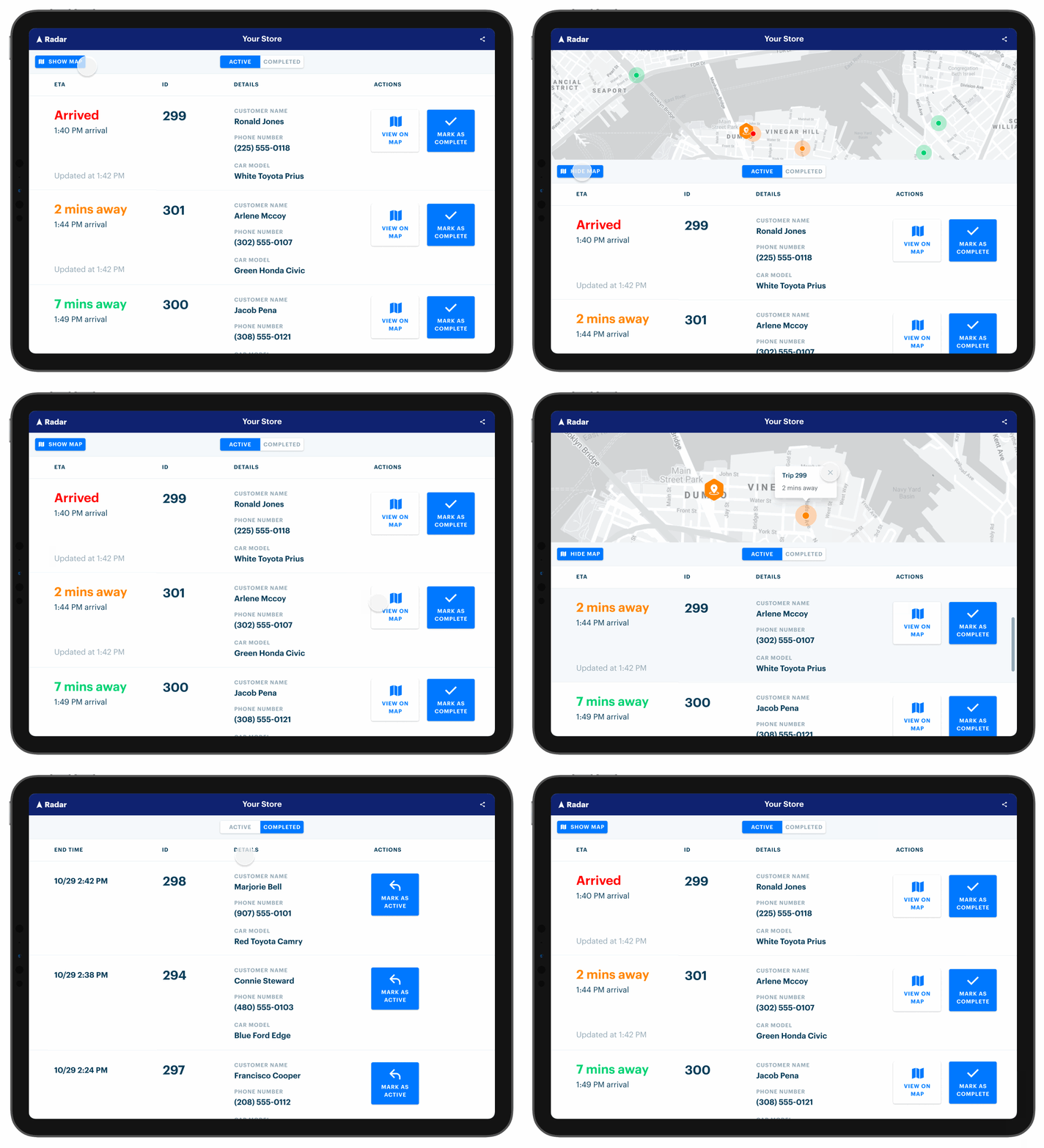
The Radar trip tracking dashboard displays active trips for a specific destination geofence, including ID, custom metadata, and ETA.
Ask your customer success manager for a distribution of the app specific to your organization.
### In your own UI
Poll the [list trips API](/api#list-trips) to retrieve active trips for a specific destination geofence, including ID, custom metadata, and ETA. For example, you might poll the list trips API from an internal dashboard.
Or, listen for [trip events](#trip-events) sent to a webhook. From there, forward trip information, including ID, custom metadata, and ETA, to other systems. For example, you might set up a webhook that sends ETA to an order management or kitchen display system.
## Analytics
Radar offers analytics on trip data and location opt-in rates from [users](/api#users) in your project. [Analytics](https://dashboard.radar.com/geofencing/trips/analytics) on trip data can be found on the Analytics page and grouped under the Trips tab. Analytics on location permission opt-in rates is grouped under the Permissions tab. Read more about Permissions [here](/faqs#location-permissions).
### How to filter your data
The Filters button at the top of the page offers ways to look at more granular views of your trip data. The filters will apply to the statistics cards and graphs as well as the data in the By Destination table.
**Date range:** A date range can be selected from the drop-down date picker. Make sure that the date in the left-hand box falls before the date in the right-hand box. When accessing the Analytics page, the default date range encompasses all trip data in your project, meaning that you'll see a default range from the date of your earliest trip to yesterday. All trip analytics are updated nightly and trip analytics from today will not be shown in the Analytics page until tomorrow.
**Destination Geofence tag:** Each geofence has a geofence tag. You can find the tag to a specific geofence in the "Tag" column on the Geofences page in the sidebar, or you can navigate to the trips page in the sidebar and click on the external ID listed under "Destination", which will show the details of the destination geofence. This field can be used alone or in tandem with the Destination Geofence External ID field.
**Destination Geofence external ID**: Each geofence has an external ID. You can find the external ID for a specific geofence in the "External ID" column on the Geofences page in the sidebar, or you can navigate to the Trips page and click on the external ID listed under "Destination". This field can be used alone or in tandem with the Destination Geofence Tag field.
**Travel mode:** Select a specific mode of travel to filter all trip data in the Analytics view to only a specific mode. If there is no mode selected, all trip data, regardless of travel mode, will be shown.
Trip analytics apply to the environment in which you view the metrics. For example, when viewing the metrics in the test environment, the metrics only include trip data from the test environment.
### Trips overview
* **`Median wait time`**: the median duration between the moment when a user arrives at a destination (`user.arrived_at_trip_destination`) and the moment when the trip is marked complete (`completed`). This statistic omits trips which are missing an arrival timestamp.
* **`Number of trips`**: the total count of all live trips for a specific project which have a status of `completed`.
* **`Median trip time`**: the median duration between the moment when the user starts a trip (`user.started_trip`) and the moment when they arrive at the destination (`user.arrived_at_trip_destination`). This statistic omits trips which are missing an arrival timestamp.
* **`Repeat customers`**: the total number of your users who have completed more than one trip.
The graphs for each card show the change over time in each statistic. The time windows of each graph are automatically determined by the dates set in the Filters button. To see data grouped by hour, set the date range to encompass 2 days or fewer. To see data grouped by day, set the date range to encompass 21 days or fewer. To see data grouped by weeks, set the date range to encompass 60 days or fewer. To see data grouped by month, the date range must encompass more than 60 days of data.
| Number of days | Time grouping |
| -------------- | ------------- |
| 2 | Hour |
| 21 | Day |
| 60 | Week |
| 60+ | Month |
### By destination table
The By Destination table groups your trip data by individual destination geofence and allows you to identify your **slowest and fastest stores** by wait time as well as your **most popular stores** by the number of trips made to the store.
By default, the By Destination table is sorted alphabetically based on the Destination column. To toggle the sort order of the column, click the column header.
The table has 6 sortable headers:
* **`Destination`**: the description of the individual destination geofence.
* **`Tag`**: the geofence tag associated with the unique geofence destination listed in the destination column. Clicking on a tag filters the entire Analytics page for only geofences that contain that tag.
* **`Geofence ID`**: the geofence ID of the unique geofence destination listed in the destination column.
* **`Wait Time`**: the median wait time of all qualifying trips to that destination, given the filters applied.
* **`Trips Completed`**: the number of completed trips to that destination, given the filters applied.
* **`Trip Time`**: the median trip time of all qualifying trips to that destination, given the filters applied.
**By destination table filter box:** The text box in the By Destination table on the Analytics page also allows you to filter only the data in the table. You can filter by Destination, Tag, or Geofence ID. (The filters set in text box only apply to data in the By Destination table and do not apply to the overall trip metrics at the top of the page.)
**Additional options in the table:** On the right side of each row, there is an icon with three dots that allows viewers to select additional options. Clicking on this icon offers two actions:
* **`Filter by destination`**: This will filter the entire analytics page to only include this single destination.
* **`View destination`**: This will bring you to the destination geofence's detail page.
### Calculations
Wait time and trip time are only calculated for trips that have a status of `completed` and have timestamp entries for `started_at`, `arrived_at`, and `completed_at`. Reminder that all trip analytics are updated nightly and trip analytics from today will not be shown in the Analytics page until tomorrow.
### Data retention settings and frequency of updates
Data retention settings (a setting on the *project* level) apply to the data in Analytics as well. The default data retention settings for trip data is 90 days.
Median wait time, trip count, and median trip duration metrics are all updated nightly, so all calculations do not include the current day's data.
If your project does not have any past trips, you will not see any data in the analytics section of your dashboard. Take your first trip to see the statistics populate!
## Support
Have questions? We're here to help! Contact us at [radar.com/support](https://radar.com/support).
Trips provides the following user context:
```json theme={null}
{
"trip": {
"_id": "5f3e50491c2b7d005c81f5d9",
"live": true,
"status": "started",
"externalId": "299",
"metadata": {
"Customer Name": "Jacob Pena",
"Car Model": "Green Honda Civic"
},
"mode": "car",
"destinationGeofenceTag": "store",
"destinationGeofenceExternalId": "123",
"destinationLocation": {
"coordinates": [
-105.06119826017914,
39.7793665
],
"type": "Point"
},
"eta": {
"duration": 5.5, // minutes
"distance": 1331 // meters
},
"createdAt": "2020-08-20T10:27:55.830Z",
"updatedAt": "2020-08-20T10:30:55.837Z",
"endedAt": "2020-08-20T10:30:55.837Z"
}
}
```
Trips also provides the following events:
* `user.started_trip`
* `user.updated_trip`
* `user.approaching_trip_destination`
* `user.arrived_at_trip_destination`
* `user.stopped_trip`
## Quickstart
First, [sign up](https://radar.com/signup) for Radar and get an API key.
Then, [create a destination geofence](/geofencing/geofences#create-geofences).
From there, [integrate the SDK](/sdk) and call `Radar.startTrip()`. Radar will generate trip events with ETAs to the destination geofence.
## Starting trips
When it's time to start a trip (e.g., when a user taps "I'm on my way" for a pickup, or when a delivery starts), start a trip with trip options (including an external ID for the trip, a destination geofence, a travel mode, and any custom metadata) and tracking options to be used during the trip (usually `RadarTrackingOptions.CONTINUOUS`).
As the trip progresses, the status will update from `started` to `approaching` (based on the *Approaching threshold* on the [Settings page](https://dashboard.radar.com/settings)), then `arrived` (on destination geofence entry).
```swift Swift theme={null}
let metadata = [
"Customer Name": "Jacob Pena",
"Car Model": "Green Honda Civic"
]
let tripOptions = RadarTripOptions(externalId: "299", destinationGeofenceTag: "store", destinationGeofenceExternalId: "123")
tripOptions.mode = .car
tripOptions.metadata = metadata
Radar.startTrip(options: tripOptions, trackingOptions: .presetContinuous) { (status: RadarStatus, trip: RadarTrip?, events: [RadarEvent]?) in
if status == .success {
// do something
} else {
// handle error
}
}
```
```c Objective-C theme={null}
RadarTripOptions *tripOptions = [RadarTripOptions new];
tripOptions.externalId = @"299";
tripOptions.destinationGeofenceTag = @"store";
tripOptions.destinationGeofenceExternalId = @"123";
tripOptions.metadata = @{@"Customer Name": @"Jacob Pena",@"Car Model":@"Green Honda Civic"};
[Radar startTripWithOptions:tripOptions trackingOptions:RadarTrackingOptions.presetContinuous
completionHandler:^(RadarStatus status, RadarTrip * _Nullable trip, NSArray * _Nullable events) {
if (status == RadarStatusSuccess) {
// do something
} else {
// handle error
}
}];
```
```kotlin Kotlin theme={null}
val externalId = "299"
val destinationGeofenceExternalId = "123"
val destinationGeofenceTag = "store"
val metadata = JSONObject()
metadata.put("Customer Name","Jacob Pena")
metadata.put("Car Model","Green Honda Civic")
val mode = Radar.RadarRouteMode.CAR
val tripOptions = RadarTripOptions(tripExternalId, tripMetadata, destinationGeofenceTag, destinationGeofenceExternalId, mode)
Radar.startTrip(tripOptions, RadarTrackingOptions.CONTINUOUS) { status, trip, events ->
if (status == Radar.RadarStatus.SUCCESS) {
// do something
} else {
// handle error
}
}
```
```java Java theme={null}
JSONObject tripOptionsJson = new JSONObject();
try {
tripOptionsJson.put("externalId","299");
tripOptionsJson.put("destinationGeofenceTag","store");
tripOptionsJson.put("destinationGeofenceExternalId","123");
JSONObject tripOptionsMetadata = new JSONObject("{\"Customer Name\":\"Jacob Pena\", \"Car Model\": \"Green Honda Civic\"}");
tripOptionsJson.put("metadata",tripOptionsMetadata)
} catch (JSONException e) {
e.printStackTrace();
}
RadarTripOptions tripOptions = RadarTripOptions.fromJson(tripOptionsJson);
Radar.startTrip(tripOptions, RadarTrackingOptions.CONTINUOUS, new Radar.RadarTripCallback() {
@Override
public void onComplete(@NonNull Radar.RadarStatus status, @Nullable RadarTrip trip, @Nullable RadarEvent[] events) {
if (status == Radar.RadarStatus.SUCCESS) {
// do something
} else {
// handle error
}
}
}
);
```
## Updating trips
As the trip progresses, you can update the trip metadata (e.g., when a parking space is assigned for a pickup) or the trip status (e.g., to manually advance the status to `approaching` or `arrived`). This can be done either using the SDK or the [API](/api#update-a-trip).
```swift Swift theme={null}
let tripOptions = Radar.getTripOptions()
tripOptions.metadata = [
"parkingSpot": "1",
]
Radar.updateTrip(options: tripOptions, status: RadarTripStatus.ARRIVED) { status, trip, events ->
if (status == Radar.RadarStatus.SUCCESS) {
// do something
} else {
// handle error
}
}
```
```c Objective-C theme={null}
RadarTripOptions *tripOptions = [Radar getTripOptions];
NSDictionary *tripOptionsMetadata = tripOptions.metadata;
NSMutableDictionary *mTripOptionsMetadata = [tripOptionsMetadata mutableCopy];
[mTripOptionsMetadata setObject:[NSNumber numberWithInt:1] forKey:@"Parking Spot"];
[tripOptions setMetadata:mTripOptionsMetadata];
[Radar updateTripWithOptions:tripOptions status:RadarTripStatusArrived completionHandler:^(RadarStatus status, RadarTrip * _Nullable trip, NSArray * _Nullable events) {
if (status == RadarStatusSuccess) {
// do something
} else {
// handle error
}
}];
```
```kotlin Kotlin theme={null}
var tripOptions = Radar.getTripOptions()
var metadata = tripOptions?.metadata
metadata?.put("Parking Spot","1")
tripOptions?.metadata = metadata
Radar.updateTrip(tripOptions, RadarTrip.RadarTripStatus.ARRIVED) { status, trip, events ->
if (status == Radar.RadarStatus.SUCCESS) {
// do something
} else {
// handle error
}
}
```
```java Java theme={null}
RadarTripOptions tripOptions = Radar.getTripOptions();
JSONObject tripOptionsMetadata = tripOptions.getMetadata();
tripOptionsMetadata.put("Parking Spot","1");
tripOptions.setMetadata(tripOptionsMetadata);
Radar.updateTrip(tripOptions, RadarTrip.RadarTripStatus.ARRIVED, (status, trip, events) -> {
if (status == Radar.RadarStatus.SUCCESS) {
// do something
} else {
// handle error
}
});
```
## Stopping trips
Finally, when the trip is complete (e.g., when an order is picked up or a delivery is dropped off), stop the trip. This can be done either using the SDK or the [API](/api#stop-or-restart-trip).
You can set trips to expire after a set period if not manually stopped using the *Expiration threshold* on the [Settings page](https://dashboard.radar.com/settings).
If tracking was started before the trip was started, the previous tracking options will be restored. Otherwise, tracking will be stopped.
```swift Swift theme={null}
// trip complete
Radar.completeTrip()
// trip cancelled
Radar.cancelTrip()
```
```c Objective-C theme={null}
// complete trip
[Radar completeTrip];
// cancel trip
[Radar cancelTrip];
```
```kotlin Kotlin theme={null}
// trip complete
Radar.completeTrip { status, trip, events ->
// do something with status, trip, events
}
// trip cancelled
Radar.cancelTrip { status, trip, events ->
// do something with status, trip, events
}
```
```java Java theme={null}
// Complete trip
Radar.completeTrip(new Radar.RadarTripCallback() {
@Override
public void onComplete(Radar.RadarStatus radarStatus, RadarTrip radarTrip, RadarEvent[] radarEvents) {
// do something
}
});
// Cancel trip
Radar.cancelTrip(new Radar.RadarTripCallback() {
@Override
public void onComplete(Radar.RadarStatus radarStatus, RadarTrip radarTrip, RadarEvent[] radarEvents) {
// do something
}
});
```
## Trip events
Radar calculates ETAs and generates events when trips are updated:
* `user.started_trip`
* `user.updated_trip`
* `user.approaching_trip_destination` (configurable ETA threshold)
* `user.arrived_at_trip_destination` (destination geofence entered)
* `user.stopped_trip`
ETAs are calculated based on travel mode using the same routing engine that powers our [distance API](/maps/routing).
You can receive events client-side via the [SDK](/sdk) or server-side via [event integrations](/integrations/integrations), including webhooks.
```json theme={null}
{
"events": [
{
"_id": "56db1f4613012711002229f6",
"type": "user.updated_trip",
"createdAt": "2020-08-20T10:30:55.837Z",
"live": true,
"trip": {
"_id": "5f3e50491c2b7d005c81f5d9",
"live": true,
"externalId": "299",
"metadata": {
"Customer Name": "Jacob Pena",
"Car Model": "Green Honda Civic"
},
"mode": "car",
"destinationGeofenceTag": "store",
"destinationGeofenceExternalId": "123",
"destinationLocation": {
"coordinates": [
-105.061198,
39.779366
],
"type": "Point"
},
"eta": {
"duration": 5.5,
"distance": 1331
},
"createdAt": "2020-08-20T10:27:55.830Z",
"updatedAt": "2020-08-20T10:30:55.837Z",
"status": "started"
},
},
],
"user": {
"_id": "56db1f4613012711002229f4",
"live": true,
"userId": "1",
"deviceId": "C305F2DB-56DC-404F-B6C1-BC52F0B680D8",
...
}
}
```
## Anomaly detection
### Wrong destination arrival detection
The wrong destination arrival detection feature identifies when a user on a trip may have entered a different destination than the one intended. Specifically, it triggers an event when the user enters a geofence that shares the same `tag` as the destination geofence, but possesses a different `externalId`.
To enable this feature, navigate to the [Settings page](https://dashboard.radar.com/settings#trips-settings) and enable the `user.arrived_at_wrong_trip_destination` event under *Trips* section.
### Delay detection
Delay detection identifies trips at risk of being delayed or incomplete. To enable this feature, configure a *Delay threshold* on the [Settings page](https://dashboard.radar.com/settings#trips-settings) under *Trips*.
If `scheduledArrivalAt` is set for a trip, delay information is captured in the trip's `delay` field. The `scheduledArrivalTimeDelay` is the predicted arrival delay from the `scheduledArrivalAt` time in minutes. The `delayed` flag is `true` when `scheduledArrivalTimeDelay` exceeds the delay threshold.
## Display live trips and ETAs
### In the Radar trip tracking dashboard
The trip tracking dashboard is available on the [Enterprise plan](https://radar.com/pricing).
The Radar trip tracking dashboard displays active trips for a specific destination geofence, including ID, custom metadata, and ETA.
Ask your customer success manager for a distribution of the app specific to your organization.

### In your own UI
Poll the [list trips API](/api#list-trips) to retrieve active trips for a specific destination geofence, including ID, custom metadata, and ETA. For example, you might poll the list trips API from an internal dashboard.
Or, listen for [trip events](#trip-events) sent to a webhook. From there, forward trip information, including ID, custom metadata, and ETA, to other systems. For example, you might set up a webhook that sends ETA to an order management or kitchen display system.
## Analytics
Radar offers analytics on trip data and location opt-in rates from [users](/api#users) in your project. [Analytics](https://dashboard.radar.com/geofencing/trips/analytics) on trip data can be found on the Analytics page and grouped under the Trips tab. Analytics on location permission opt-in rates is grouped under the Permissions tab. Read more about Permissions [here](/faqs#location-permissions).
### How to filter your data
The Filters button at the top of the page offers ways to look at more granular views of your trip data. The filters will apply to the statistics cards and graphs as well as the data in the By Destination table.
**Date range:** A date range can be selected from the drop-down date picker. Make sure that the date in the left-hand box falls before the date in the right-hand box. When accessing the Analytics page, the default date range encompasses all trip data in your project, meaning that you'll see a default range from the date of your earliest trip to yesterday. All trip analytics are updated nightly and trip analytics from today will not be shown in the Analytics page until tomorrow.
**Destination Geofence tag:** Each geofence has a geofence tag. You can find the tag to a specific geofence in the "Tag" column on the Geofences page in the sidebar, or you can navigate to the trips page in the sidebar and click on the external ID listed under "Destination", which will show the details of the destination geofence. This field can be used alone or in tandem with the Destination Geofence External ID field.
**Destination Geofence external ID**: Each geofence has an external ID. You can find the external ID for a specific geofence in the "External ID" column on the Geofences page in the sidebar, or you can navigate to the Trips page and click on the external ID listed under "Destination". This field can be used alone or in tandem with the Destination Geofence Tag field.
**Travel mode:** Select a specific mode of travel to filter all trip data in the Analytics view to only a specific mode. If there is no mode selected, all trip data, regardless of travel mode, will be shown.
Trip analytics apply to the environment in which you view the metrics. For example, when viewing the metrics in the test environment, the metrics only include trip data from the test environment.
### Trips overview
* **`Median wait time`**: the median duration between the moment when a user arrives at a destination (`user.arrived_at_trip_destination`) and the moment when the trip is marked complete (`completed`). This statistic omits trips which are missing an arrival timestamp.
* **`Number of trips`**: the total count of all live trips for a specific project which have a status of `completed`.
* **`Median trip time`**: the median duration between the moment when the user starts a trip (`user.started_trip`) and the moment when they arrive at the destination (`user.arrived_at_trip_destination`). This statistic omits trips which are missing an arrival timestamp.
* **`Repeat customers`**: the total number of your users who have completed more than one trip.
The graphs for each card show the change over time in each statistic. The time windows of each graph are automatically determined by the dates set in the Filters button. To see data grouped by hour, set the date range to encompass 2 days or fewer. To see data grouped by day, set the date range to encompass 21 days or fewer. To see data grouped by weeks, set the date range to encompass 60 days or fewer. To see data grouped by month, the date range must encompass more than 60 days of data.
| Number of days | Time grouping |
| -------------- | ------------- |
| 2 | Hour |
| 21 | Day |
| 60 | Week |
| 60+ | Month |
### By destination table
The By Destination table groups your trip data by individual destination geofence and allows you to identify your **slowest and fastest stores** by wait time as well as your **most popular stores** by the number of trips made to the store.
By default, the By Destination table is sorted alphabetically based on the Destination column. To toggle the sort order of the column, click the column header.
The table has 6 sortable headers:
* **`Destination`**: the description of the individual destination geofence.
* **`Tag`**: the geofence tag associated with the unique geofence destination listed in the destination column. Clicking on a tag filters the entire Analytics page for only geofences that contain that tag.
* **`Geofence ID`**: the geofence ID of the unique geofence destination listed in the destination column.
* **`Wait Time`**: the median wait time of all qualifying trips to that destination, given the filters applied.
* **`Trips Completed`**: the number of completed trips to that destination, given the filters applied.
* **`Trip Time`**: the median trip time of all qualifying trips to that destination, given the filters applied.
**By destination table filter box:** The text box in the By Destination table on the Analytics page also allows you to filter only the data in the table. You can filter by Destination, Tag, or Geofence ID. (The filters set in text box only apply to data in the By Destination table and do not apply to the overall trip metrics at the top of the page.)
**Additional options in the table:** On the right side of each row, there is an icon with three dots that allows viewers to select additional options. Clicking on this icon offers two actions:
* **`Filter by destination`**: This will filter the entire analytics page to only include this single destination.
* **`View destination`**: This will bring you to the destination geofence's detail page.
### Calculations
Wait time and trip time are only calculated for trips that have a status of `completed` and have timestamp entries for `started_at`, `arrived_at`, and `completed_at`. Reminder that all trip analytics are updated nightly and trip analytics from today will not be shown in the Analytics page until tomorrow.
### Data retention settings and frequency of updates
Data retention settings (a setting on the *project* level) apply to the data in Analytics as well. The default data retention settings for trip data is 90 days.
Median wait time, trip count, and median trip duration metrics are all updated nightly, so all calculations do not include the current day's data.
If your project does not have any past trips, you will not see any data in the analytics section of your dashboard. Take your first trip to see the statistics populate!
## Support
Have questions? We're here to help! Contact us at [radar.com/support](https://radar.com/support).